Start a new project
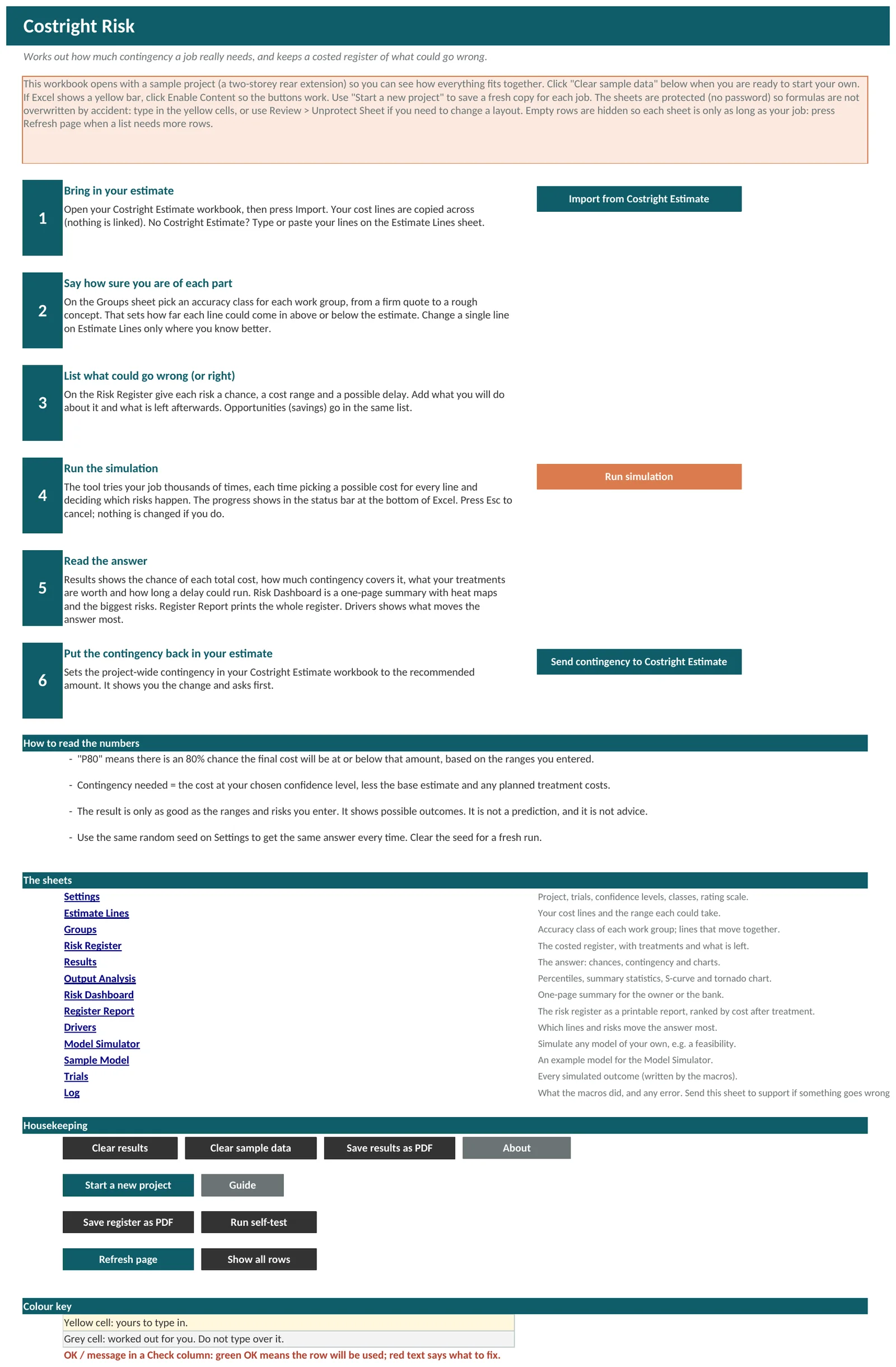
On the Start Here sheet, click Start a new project and save a copy with a name that says which job it is. Keep one workbook for each project. The copy holds whatever was in the original, so click Clear sample data and Clear results in it.
Bring in your estimate
Open your Costright Estimate workbook, then click Import from Costright Estimate. Your cost lines are copied across and nothing is linked. If you do not use the Costright Estimate, type or paste your lines on the Estimate Lines sheet.
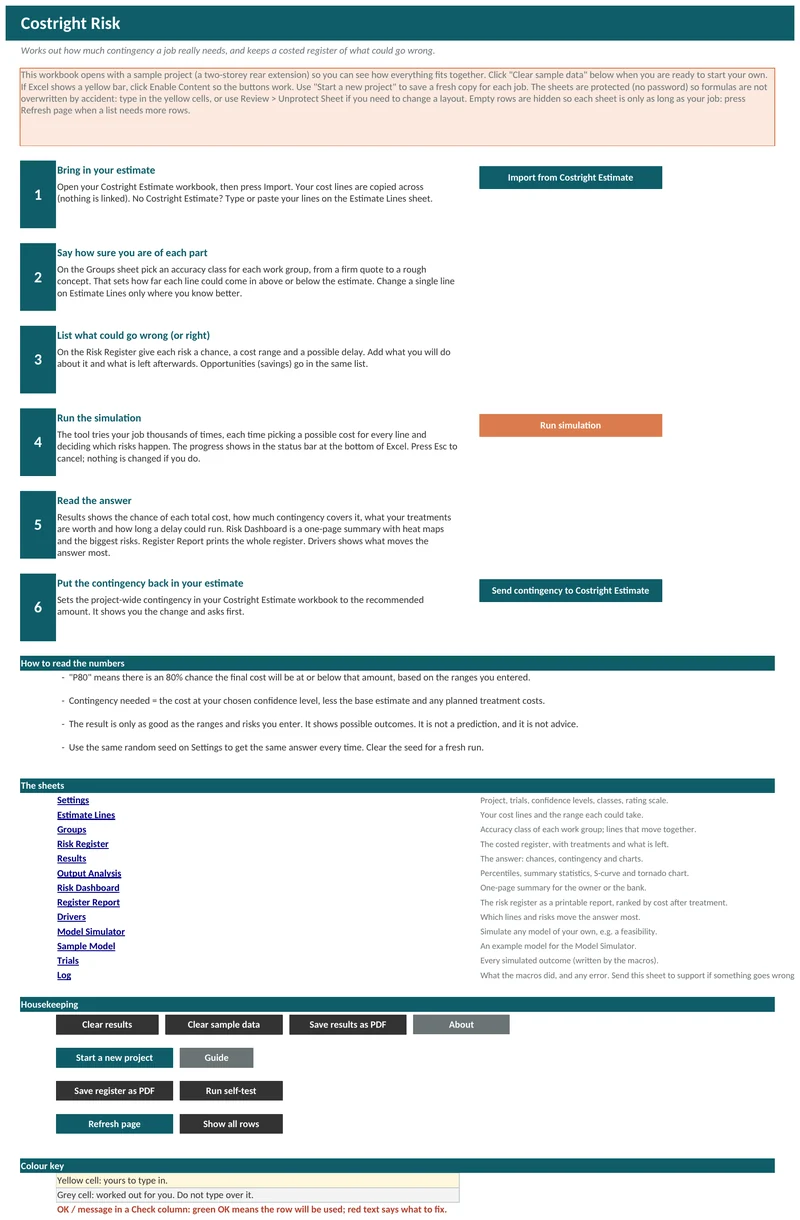
Start Here. Say how sure you are of each part
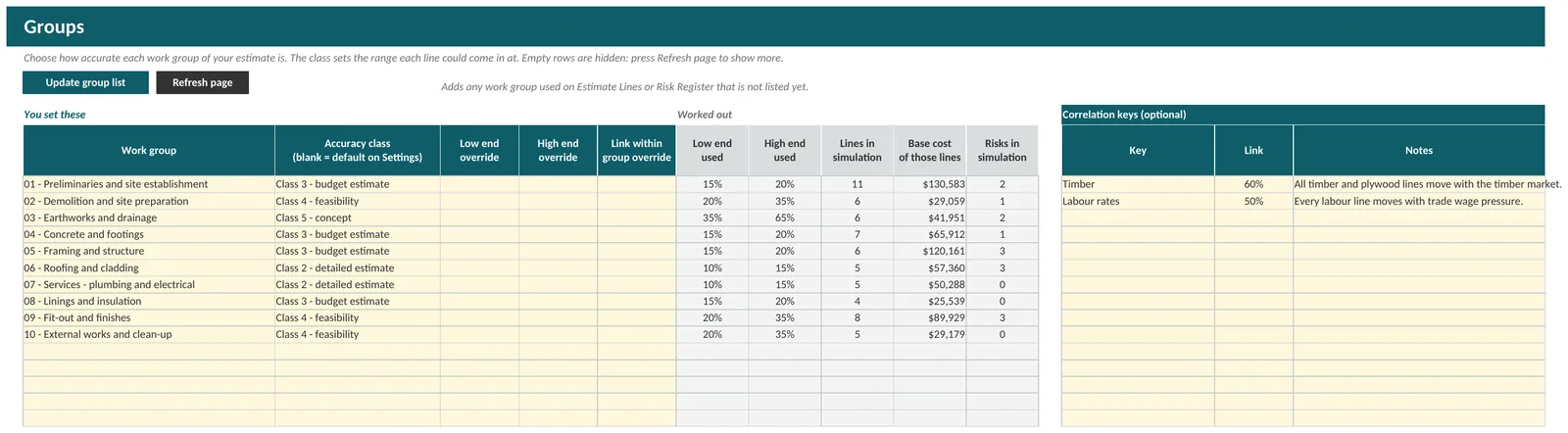
On the Groups sheet pick an accuracy class for each work group, from a firm quote to a rough concept. Change a single line on Estimate Lines only where you know better.
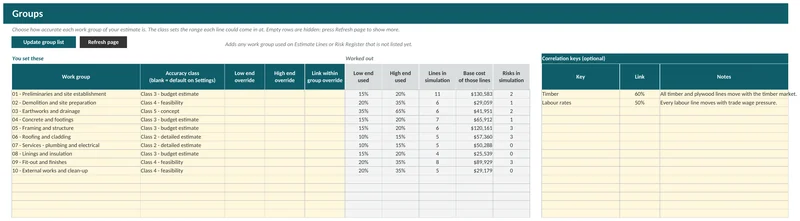
Groups. List what could go wrong, or right
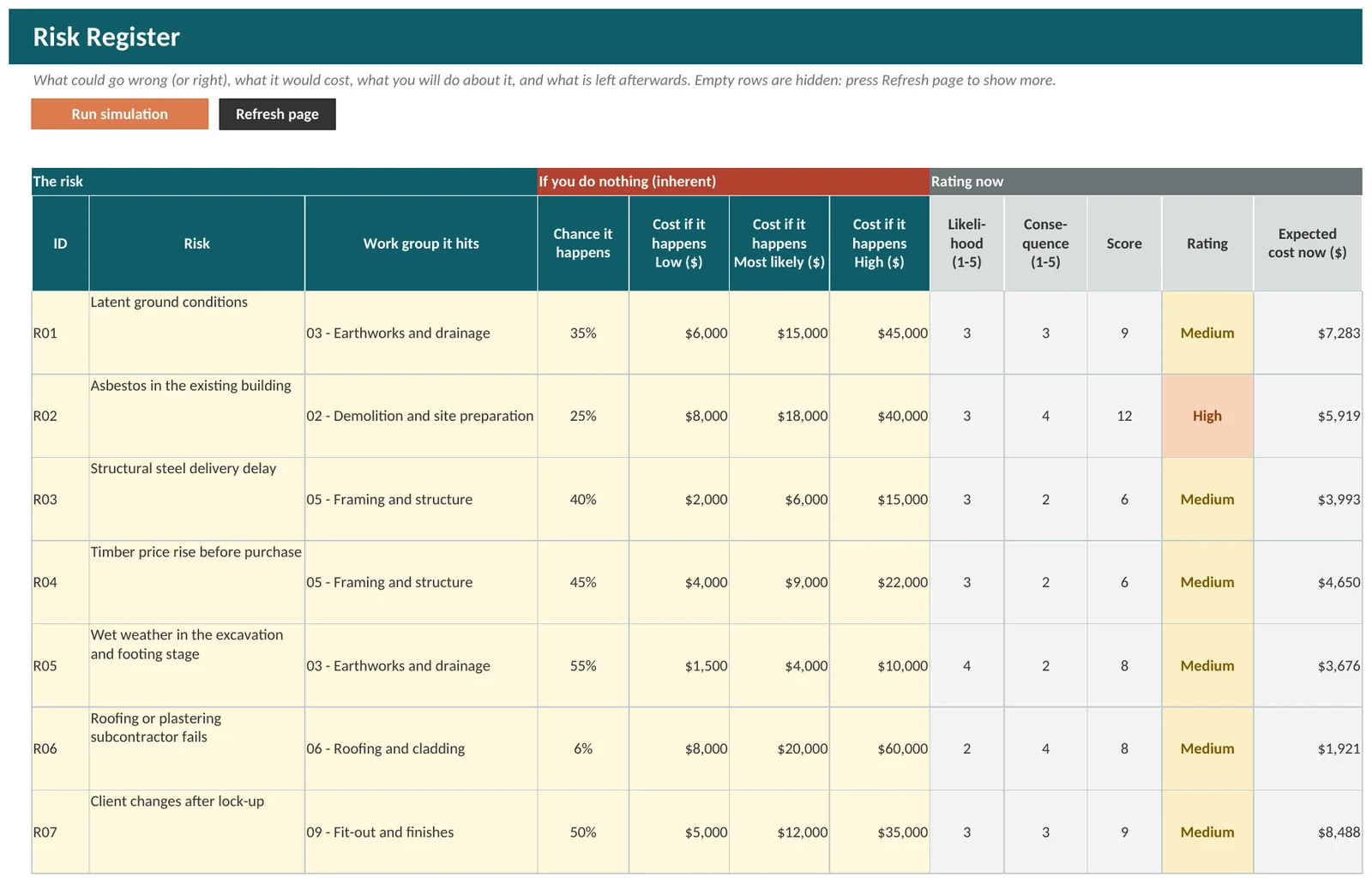
On the Risk Register give each risk a chance, a cost range and a possible delay. Add what you will do about it and what is left afterwards. Opportunities go in the same list. Empty rows are hidden, so press Refresh page when you need more.
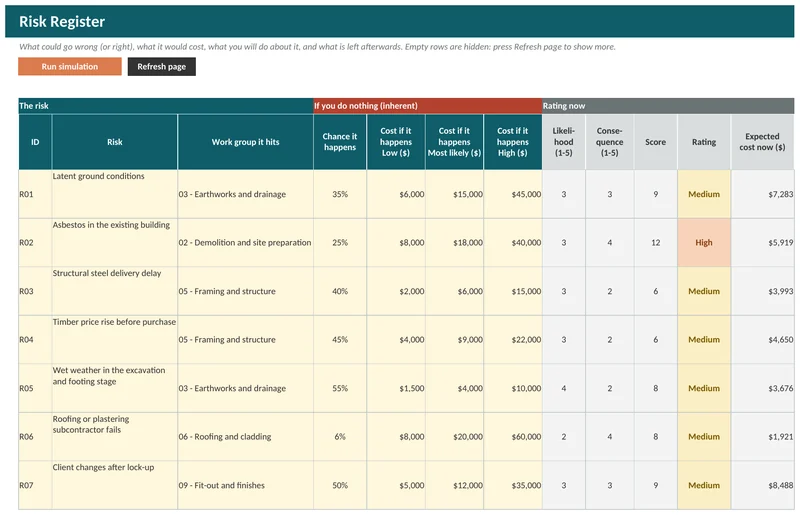
Risk Register. Run the simulation
Click Run simulation. The workbook tries your job thousands of times, picking a possible cost for every line and deciding which risks happen. The progress shows in the status bar at the bottom of Excel, and Esc cancels the run without changing anything. Type a number in the Random seed cell on Settings to get the same answer every time, and clear it for a fresh run.
Read the answer
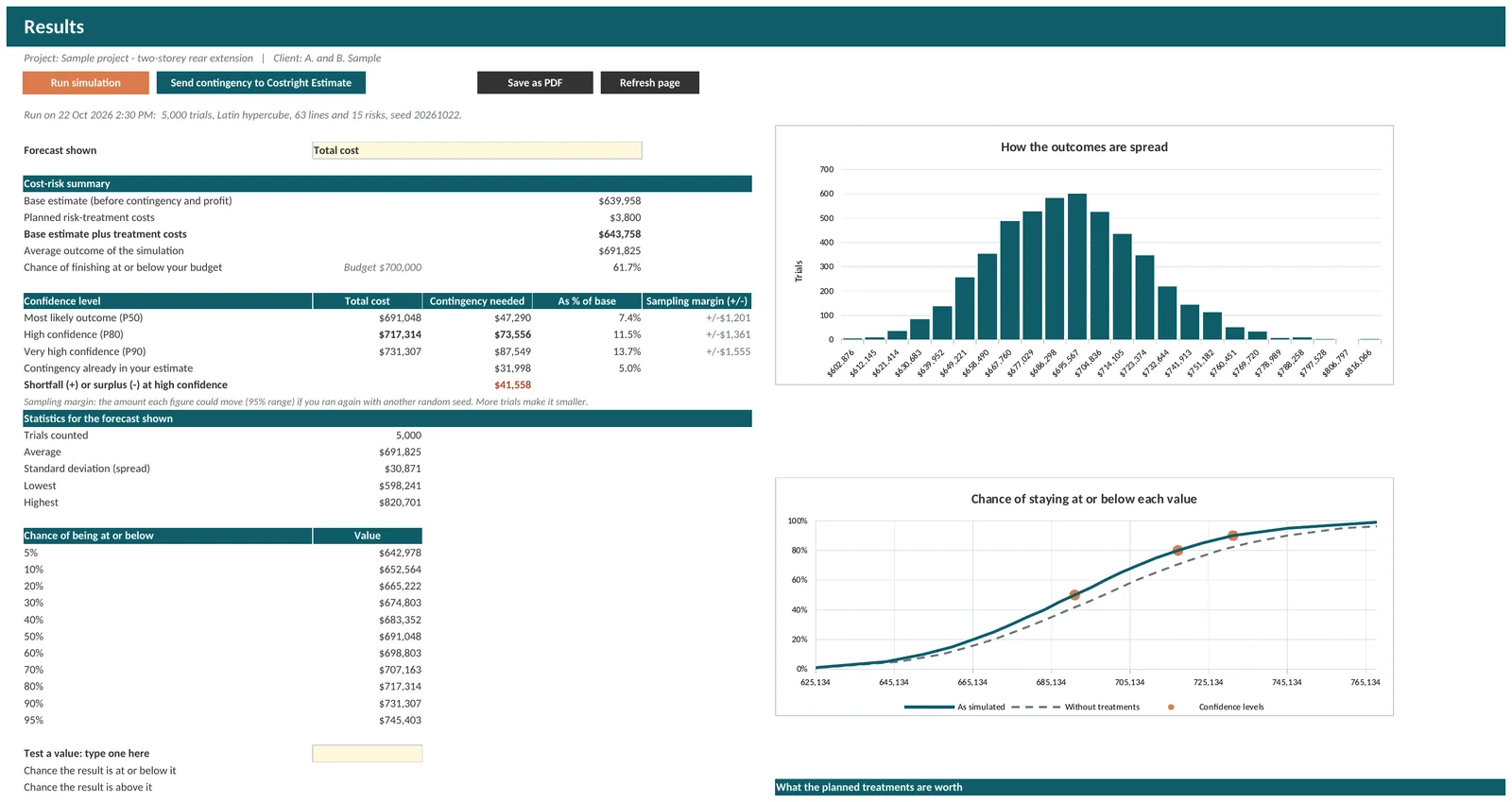
Results shows the chance of each total and how much contingency covers it. Output Analysis adds the percentile table and the charts. The Risk Dashboard is a one-page summary with heat maps and the biggest risks. Drivers shows what moves the answer most.
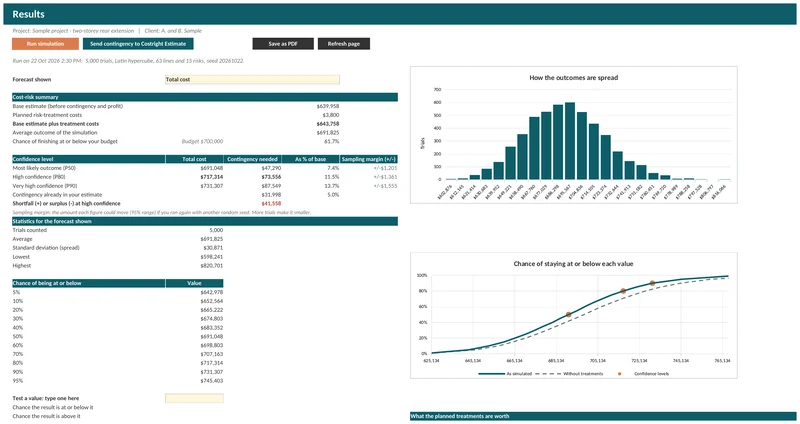
Results. Put the contingency back in your estimate
Click Send contingency to Costright Estimate to set the project-wide contingency in your Costright Estimate workbook to the recommended amount. It shows you the change and asks first.
How to read the numbers
- “P80” means there is an 80% chance the final cost will be at or below that amount, based on the ranges you entered.
- Contingency needed is the cost at your chosen confidence level, less the base estimate and any planned treatment costs.
- The result is only as good as the ranges and risks you enter. It shows possible outcomes. It is not a prediction, and it is not advice.
Run it on a real job
The Costright Risk is $395 once, with no licence key.